Download Release Version
From the Program:
From the Website:
- Log in to your Find IT Easy Member Account.
-
Click to select the Software Downloads tab. A list of product releases and optional connectors will appear.
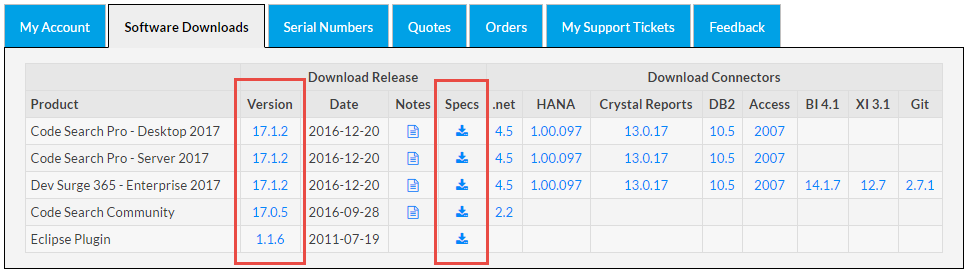
- Locate the product and release version that you want to download.
- Download the product as follows:
In the Version column, click on the product release number for the corresponding product row. The release setup file will begin to download.
OR
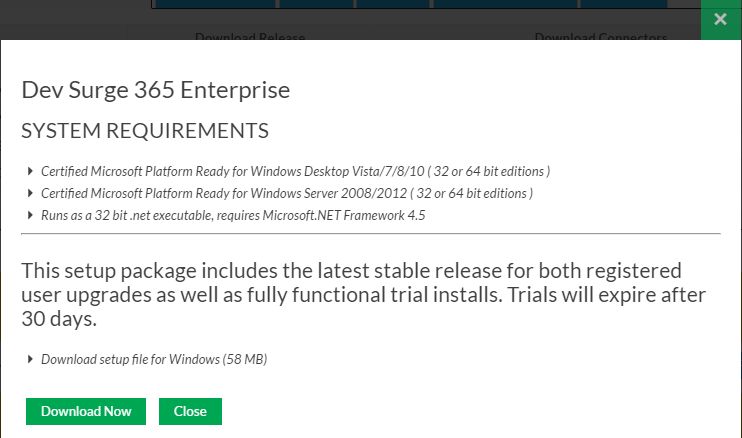
In the Specs column, click on the download icon for the corresponding product row. The system requirements will be provided. Click on the button and the corresponding release setup file will begin to download. See example below:
-
Locate and launch the downloaded *.exe setup file from your target system. A Find IT Easy InstallShield Wizard dialog box will appear.
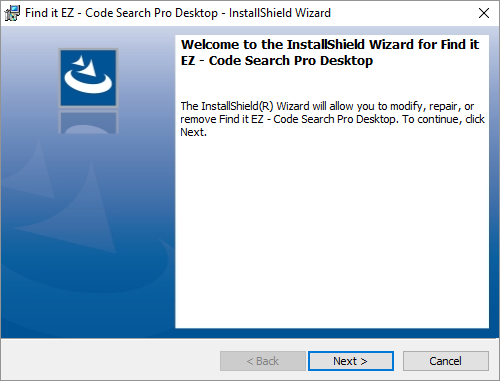
- Click on the button.
- Read and follow the installation instructions.
- When complete, click on the button.